ECU Digital Banking Tools

24/7 Account Access Anywhere

ECU Funds Transfer

Move Money Between Banks

Move Money Where You Need it

ECU upgrades your financial control with Funds Transfer, an enhancement to ECU’s Online Banking that lets you move money between ECU and other financial institutions, including banks, brokerages, and credit unions. Shift funds from an external savings account to ECU or transfer from your ECU checking account to your investment firm, all in one place. Funds Transfer is supported by more than 23,000 banks and credit unions and 85% of brokerage houses.

ECU Funds Transfer features:

  • Internal transfers are instant

  • Set up recurring and future-dated transfers

  • You can transfer to third-party accounts (if permitted by the receiving financial institution)

  • There is no fee for transfers into ECU accounts

Man using laptop to make a funds transfer

ECU Bill Pay

Pay Bills Online Faster, Schedule Ahead, Track Everything

Easily Pay Bills, Plan Expenses and
Manage Your Finances with ECU

Pay bills online or through the mobile app with ECU Bill Pay for a faster, safer, paperless way to stay on top of every payment. Pay anyone online, schedule ahead, automate recurring bills, and track payment history anytime, anywhere. ECU delivers the convenience you want with the power to do what you need with ease.

Bill Pay features:

  • Pay anyone online

  • Schedule payments up to one year in advance

  • Set up regular payments for recurring bills

  • View past payments anytime, from anywhere

  • Create reports by payee, amount, date or account number to view, edit or delete

Man with wife using a device to make bill payments

How to enroll in Bill Pay:

  • Log in to ECU online banking.

  • Select the Bill Pay tab to get started.

How to enroll in Mobile Banking:

  • Log in to the ECU Mobile App.

  • Select the Move Money menu.

  • Click Bill Pay to get started.

Enjoy more control and visibility:

  • Edit or delete scheduled payments before they’re sent.

  • Get notifications for due dates, bill arrivals and completed payments.

  • Authorize transfers, withdrawals and deposits from accounts at other financial institutions.

Expedited Bill Payment:
guaranteed next-day delivery

When timing matters, use ECU’s Expedited Bill Payment service for guaranteed next-day delivery:
  • Electronic payments for payees that accept electronic payments

  • Overnight checks for payees that do not accept electronic payments

ECU eDocs and eStatements

Free, Secure Online Statements and IRS Documents With Instant Alerts

Keep documents Safe. Keep them Close and Accessible.

Get faster access and more control over your financial documents with ECU eDocs. eDocs is safe, secure, and free, giving you a quick way to view ECU statements, disclosures, notices and IRS documents anytime, anywhere. Choose how you want to review your documents, then print or save them for when you need them.

ECU Funds Transfer features:

  • Internal transfers are instant

  • Set up recurring and future-dated transfers

  • You can transfer to third-party accounts (if permitted by the receiving financial institution)

  • There is no fee for transfers into ECU accounts

Man using his laptop to view eStatements

Key eDocs benefits:

  • Accessible through Online Banking or ECU Mobile App

  • View statements, notices, disclosures, and IRS documents anytime, anywhere

  • Receive email or text notifications when new documents are ready

  • Store 12 months of statements, notices and disclosures

How to access eDocs:

  • Log in to ECU Online Banking and click the eDocs/Statements tab

  • Use the ECU mobile app: Tap More, then eDocs/Statements

  • Need help? Call 806-358-7777

ECU Real-Time Mobile Deposit Capture

Deposit Checks Anywhere and See Funds in Minutes

Check in Hand? Deposit Now into ECU

Save time and skip a trip to the branch with ECU real-time Mobile Deposit Capture (MDC). Deposit original checks anytime, anywhere into your ECU checking, savings, or money market account using the ECU mobile banking app for iPhone and Android. Deposits appear within minutes.* ECU makes it easy.

Why use ECU MDC?
  • Deposit on the go without a branch visit

  • Deposits post in real time so you can see your money within minutes*

  • MDC works with ECU checking, savings, and money market accounts

  • It’s safe, secure and free through Education CU’s mobile app

Smart borrowing starts here with ECU.

Woman making a mobile deposit at home

Check Image Tips

Follow these tips to reduce the chance that your check will be rejected:
  • Login to the ECU Mobile App, and select “Check Deposit”.

  • Use a pen with blue or black ink to sign the back of the check.

  • Ensure “For Mobile Deposit at Education Credit Union only” is written in the endorsement section on the back of the check.

  • Place check down on a flat surface.

  • Ensure the entire check appears in the photo box.

  • Remove extraneous objects from the image (pens, papers, etc.).

  • Ensure the check is not blocked by fingers on the camera lens.

  • Ensure that the background is a good color contrast to the check.

Additional MDC Tips

  • We will only notify you by email if your check is rejected. Hang on to your check until you’re certain it’s deposited, and make sure your contact email is up to date.

  • Checks deposited through MDC may not immediately show in your regular account transaction history feed.

ECU Money Management Tool

Track Spending, Build Budgets and See Your Full Financial Picture

ECU Gives You 360-Degree View Into Your Finances

When you see everything, you can easily manage everything. Money Management is a free financial management tool inside ECU online banking and the ECU mobile app that helps you take financial control and move faster toward your goals. Get an up-to-date, big-picture view of your finances, including your financial, investment and retirement accounts, so you can manage your money anytime, anywhere. Count on ECU to be your source for financial guidance.

Young woman with headphones using her device

What you can do with ECU Money Management

  • Track spending and monitor where your money goes.

  • Create budgets and follow your spending and savings habits.

  • View accounts from 5,000+ financial institutions in one place.

  • Build a plan to get out of debt and stay out of debt.

  • Stay on top of your money and live within your means.

Plus, it’s FREE, easy to use, and available now in online banking and the mobile app. Get started today!

Zelle

Zelle® is a convenient way to send money right from ECU’s mobile app or online bank account

Whether it’s saving you a trip to the ATM or sharing the cost of your lunch tab, Zelle® is a fast, safe and easy way to send and request money with friends, family and others you trust². Money is sent directly to the recipient’s account and is typically available in minutes¹, and all you need to send money is the recipient’s Zelle® QR code, email address or U.S. mobile phone number.

Why use ECU MDC?
  • Deposit on the go without a branch visit

  • Deposits post in real time so you can see your money within minutes*

  • MDC works with ECU checking, savings, and money market accounts

  • It’s safe, secure and free through Education CU’s mobile app

Smart borrowing starts here with ECU.

Man sending money using Zelle on his device at home
App Store is a service mark of Apple Inc. Apple, and the Apple logo are trademarks of Apple Inc, registered in the U.S. and other countries. Android, Google Play, and the Google Play logo are trademarks of Google Inc. Data charges may apply. Check with your mobile phone carrier for details. Zelle®. and the Zelle®. related marks are wholly owned by Early Warning Services, LLC and are used herein under license.

1 To send or receive money with Zelle®, both parties must have an eligible checking or savings account. Transactions typically occur in minutes.

Zelle® and the Zelle®-related marks are wholly owned by Early Warning Services, LLC and are used to herein under license.

Copyright © 2026 Education Credit Union. All rights reserved.

Frequently Asked Questions:

Zelle® is a convenient way to send, receive and request money among friends, family and others you trust through your bank or credit union’s mobile app or online banking. All you need is your recipient’s enrolled email address or U.S. mobile number, and money will be available to use in minutes. Your account information and activity stay private. Zelle® is currently live in more than 2,300 financial institutions, so you can send money to friends and family even if they don’t bank at Education Credit Union.1
You can send, request or receive money with Zelle®.

  1. To get started, log in to Education Credit Union’s online banking or mobile app, navigate to More and select Other Services and Send/Request Money with Zelle®.
  2. To send money using Zelle®, simply select someone from your mobile device’s contacts (or add a trusted recipient’s email address or U.S. mobile number), add the amount you’d like to send and an optional note, review, then click Send. The recipient will receive an email or text message notification via the method they used to enroll with Zelle®. Money is available to your recipient in minutes if they are already enrolled with Zelle®.
  3. To request money using Zelle®, choose Request, enter their enrolled email address, U.S. mobile number or Zelle® tag, confirm the recipient is correct, and tap Request.
  4. To receive money, just share your enrolled email address or U.S. mobile number with a friend and ask them to send you money with Zelle®. If you have already enrolled with Zelle®, you do not need to take any further action. The money will be sent directly into your Education Credit Union account, typically within minutes.

If someone sent you money with Zelle® and you have not yet enrolled with Zelle®, follow these steps:

  1. Click on the link provided in the payment notification you received via email or text message.
  2. Select Education Credit Union.
  3. Follow the instructions provided on the page to enroll and receive your payment. Pay attention to the email address or U.S. mobile number where you received the payment notification; you should enroll with Zelle® using that email address or U.S. mobile number to ensure you receive your money.
Keeping your money and information secure is a top priority for Education Credit Union. When you use Zelle® within our mobile app or online banking, your information is protected with the same technology we use to keep your Education Credit Union accounts safe.
Zelle® is a great way to send money to family, friends and people with whom you are familiar such as your personal trainer, babysitter or neighbor.1

Because money is sent directly from your Education Credit Union account to another person’s bank account within minutes,1 Zelle® should only be used to send money to friends, family and others you trust.

If you don’t know the person or aren’t sure you will get what you paid for (for example, items bought from an online bidding or sales site), you should not use Zelle®. These transactions are potentially high risk (just like sending cash to a person you don’t know is high risk).

Some small businesses are able to receive payments with Zelle®. Ask your favorite small business if they accept payments with Zelle®. If they do, you can pay them directly from the Education CU mobile app or online banking using just their enrolled email address, U.S. mobile number, or Zelle® tag.

Neither Education Credit Union nor Zelle® offers purchase protection for payments made with Zelle.® So for example, there is no protection if you do not receive the item you paid for or the item is not as described or as you expected. Only send money to people and small businesses you trust and always ensure you’ve used the correct email address or U.S. mobile number when sending money.

Please contact our customer support team at 806-358-7777. Qualifying imposter scams may be eligible for reimbursement.

In order to use Zelle®, the sender and recipient’s bank or credit union accounts must be based in the U.S.

No, Zelle® payments cannot be reversed.

You can only cancel a payment if the person you sent money to hasn’t yet enrolled with Zelle®. To check whether the payment is still pending because the recipient hasn’t yet enrolled, you can go to your activity page, choose the payment you want to cancel, and then select Cancel This Payment. If you do not see this option available, please contact our customer support team at 806-355-7777 for assistance with canceling the pending payment.

If the person you sent money to has already enrolled with Zelle® through their bank or credit union’s mobile app or online banking, the money is sent directly to their bank account and cannot be canceled. This is why it’s important to only send money to people you know and trust and always ensure you’ve used the correct email address or U.S. mobile number when sending money.

If you sent money to the wrong person, please immediately call our customer support team at 806-358-7777 to determine what options are available.

No, Education Credit Union does not charge any fees to use Zelle® in the mobile app or online banking.

Your mobile carrier’s messaging and data rates may apply.

The amount of money you can send, as well as the frequency, is set by each participating financial institution. To determine Education Credit Union’s send limits, call our customer service at 806-358-7777.

At Education Credit Union, there are no limits to the amount of money you can receive with Zelle®. However, remember that the person sending you money will most likely have limits set by their own financial institution on the amount of money they can send you.

As of March 31, 2025, all users must be enrolled through one of the more than 2,300 banks and credit unions that offer Zelle® in order to send and receive money. The list of participating financial institutions is always growing. You can find the updated list of participating banks and credit unions live with Zelle® at Zelle.com. If their bank or credit union is not listed, we recommend you use another payment method at this time.

A Zelle® QR code provides peace of mind knowing you can send and receive money to the right person, without typing an email address or U.S. mobile number.

To locate your Zelle® QR code, log in to the Education Credit Union’s online banking or mobile app and click Send Money with Zelle®. Next, go to your Zelle® settings and click Zelle® QR code. Your QR code will be displayed under My Code. From here you can view your QR code and use the print or share icons to text, email or print your Zelle® QR code. To receive money, just share your Zelle® QR code.

To send money, log in to the Education Credit Union’s online banking or mobile app, click Send money with Zelle®, click Send, and then click the QR code icon displayed at the top of the Select Recipient screen. Once you allow access to your camera, simply point your camera at the recipient’s Zelle® QR code, enter the amount, click Send, and the money is on the way! When sending money to someone new, it’s always important to confirm the recipient is correct by reviewing the displayed name before sending money.

Click here for Zelle® terms and conditions.

Don’t have our mobile app?

Download it for free:

Apple App Store Badge Icon
Google Play Badge Icon

ECU Text banking

Check Balances, View Transactions and Transfer Funds by Text

Get Updates, Know What’s Happening and When

Stay informed and in control of your money with ECU Text Banking. Get account balances, recent transactions and transfers right from your phone, anytime, anywhere. Add eAlerts to receive automatic text updates for account balances, ACH transactions and upcoming loan payments. ECU keeps you updated so you can focus on living life.

Woman using text banking commands with her device

How to Get Started with Secure Enrollment:

  • Log in to ECU Online Banking to enroll

  • Click on My Settings

  • Click on Alerts & Notifications

  • Enter your phone number for text message alerts

  • Receive an activation code by text

  • Enter the code in Mobile Verification Agreements to activate Text Banking

ECU never texts confidential information like user IDs, passwords, or full account numbers.

How to Customize your Alerts & Notifications

  • Log into online banking

  • Select My Settings, scroll down to Alerts & Notification

  • Select the options you want

  • Questions? Visit the FAQ page

  • Set a low balance alert with a threshold you choose

Standard carrier message and data rates may apply. Check with your wireless provider.

How ECU Text Banking works

  • Text a short command to 454545.

  • Get fast access to balances and transactions on your mobile phone.

Popular Text Banking commands

  • BAL: Current and available balances for your designated primary account.

  • LAST: Last five transactions in your primary account.

  • BAL ALL: Current balances for all your ECU accounts.

  • More commands are available.

ECU Skip-a-Pay

Life Happens and Flexibility with your Bills Gives you an Edge

ECU knows that life is full of twists and turns. Our expertise is working hard to support your goals. Skipping a loan payment can give you more financial flexibility when you need it. Skip your payment* on many ECU loans and spend the money on your loved ones instead. Though skipping a payment will extend the term of your loan, you’ll have the month to recover and reset before your regular payment schedule resumes.

Submit the application in online banking or the ECU mobile app for eligible loans.

Father and young daughters having breakfast in the kitchen
*Skip-a-Pay is not available for: real estate loans, home equity loans, Extra Credit LOCs, credit cards, single-pay notes, overdraft loans, a loan in bankruptcy, within the first 12 months. Member must have made at least six months of consecutive payments on the loan. All loans must have on-time payments within the last six months. Only two Skip-a-Pays allowed per 12-month rolling period. The Skip-a-Pays must occur six months apart. There is a $25 fee each Skip-a-Pay. Interest will continue to accrue on the outstanding balance during the Skip-a-Pay period. Your regular payment schedule will resume in the month immediately following the month in which you have skipped payment. Except for this change to the payment obligation, all other terms of your agreement remain in effect. Skipping a payment will extend the term of your loan.

Free FICO® Credit Score Through ECU

Check Anytime in Online Banking or the Mobile App

Track Your Credit with Confidence

Your credit rating is your lifeline to borrowing and meeting your financial goals. Education Credit Union lets you check your FICO® credit score for free anytime through ECU Online Banking or the ECU mobile app. Your score is updated monthly by Experian, so you can monitor progress and stay ready for your next financial move. ECU provides easy access and quick insight to your financial information.
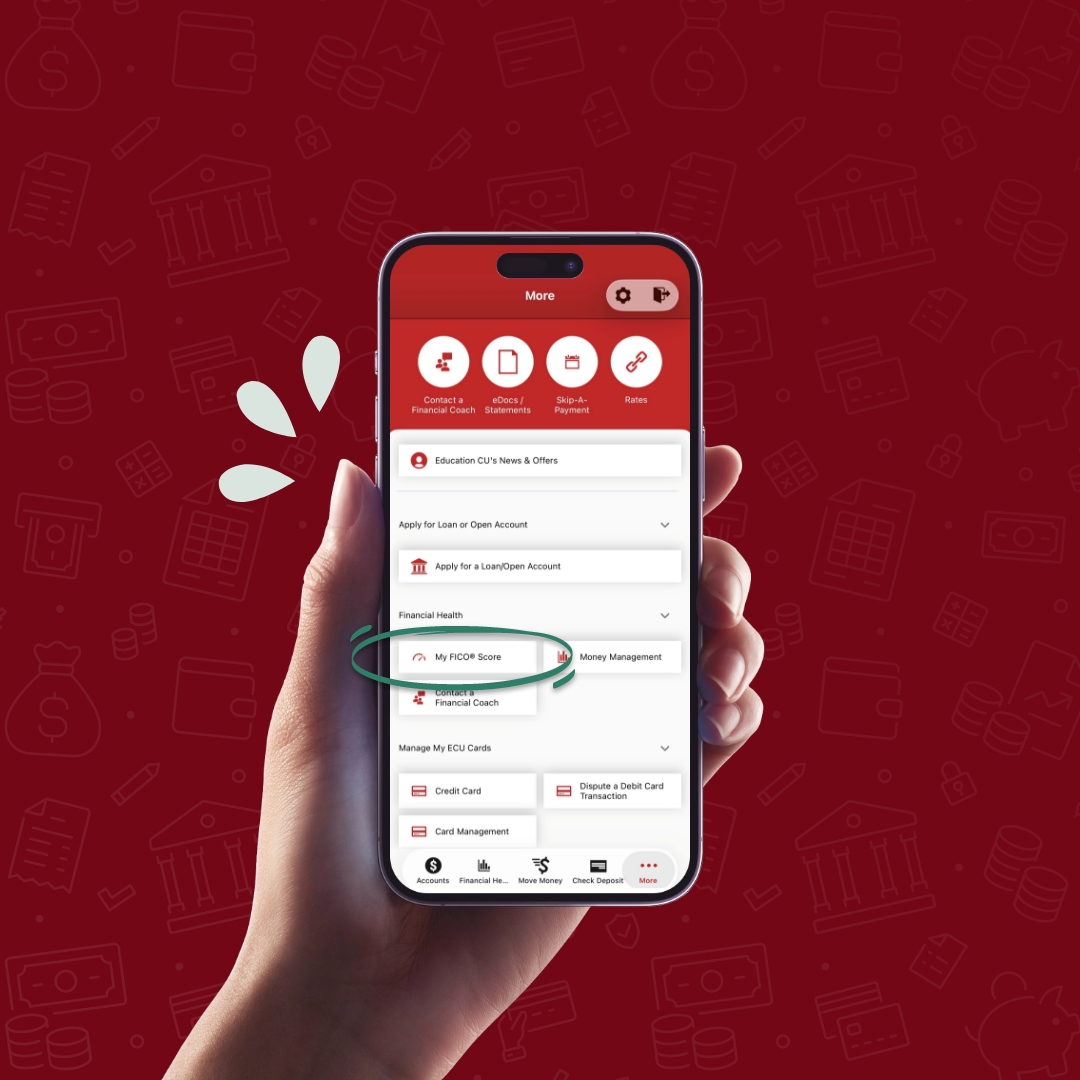

ECU App mockup highlighting the MyFICO Score feature

How to view My FICO® Score in ECU Online Banking:

  • Log in to Online Banking

  • Click Manage Money

  • Scroll to My FICO® Score
  • First-time access: Opt in and accept the agreement

  • Check I understand, and then click Show FICO® Score

How to view My FICO® Score in the ECU mobile app

  • Open the ECU mobile app

  • Tap More

  • Scroll to My FICO® Score
  • First-time access: Opt in and accept the agreement

  • Check I understand, and then tap Show FICO® Score

How to opt out

  • On the My FICO® Score page, scroll to the Opt-Out link below the FICO® score graph
  • Click the link and confirm on the pop-up screen